1. Making evenly spaced values#
Generating arrays of evenly spaced values with bordado.line_coordinates
is the most basic thing Bordado can do. It may seem trivial, but there are some
nuances to this. Let’s see all the different ways it can be done.
import bordado as bd
import numpy as np
import matplotlib.pyplot as plt
1.1. Specifying the number of values#
Let’s say we want to generate values between 0 and 10 with an interval of 0.5.
We can use function line_coordinates to do this by doing some
maths to figure out that we need 21 points for this (don’t forget the extra one
because of the end point):
values = bd.line_coordinates(0, 10, size=21)
print(values)
[ 0.   0.5  1.   1.5  2.   2.5  3.   3.5  4.   4.5  5.   5.5  6.   6.5
  7.   7.5  8.   8.5  9.   9.5 10. ]
Notice that the end points are always included. This should be pretty much
the same as using numpy.linspace.
1.2. Specifying the spacing between values#
Sometimes we want to specify the spacing between consecutive values instead of
the number of values.
We can do so by passing the spacing argument to line_coordinates
instead and let Bordado do the maths:
values = bd.line_coordinates(0, 10, spacing=0.5)
print(values)
[ 0.   0.5  1.   1.5  2.   2.5  3.   3.5  4.   4.5  5.   5.5  6.   6.5
  7.   7.5  8.   8.5  9.   9.5 10. ]
Notice that, unlike numpy.arange, the start and end values are
always included.
1.3. Adjusting spacing or boundaries#
The above example works well and could be reproduced with numpy.arange
if the spacing is a multiple of the interval (here, we’ll call the interval
the region). If it’s not, then there’s no way of fitting values inside
the region with the given spacing. In that case, we’ll need to adjust the
region or the spacing.
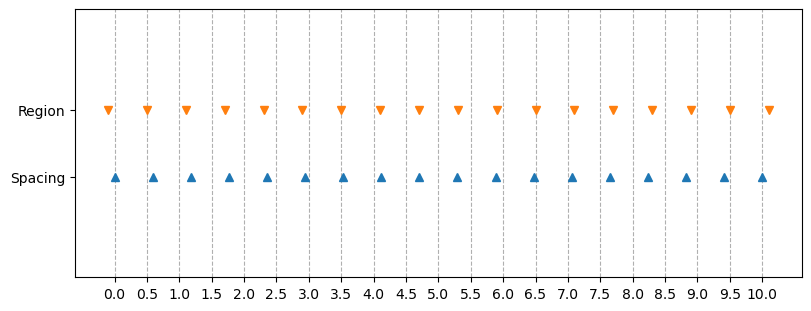
Bordado will automatically adjust the spacing to make it fit the given region if they are multiples:
values = bd.line_coordinates(0, 10, spacing=0.6)
print(values)
[ 0.          0.58823529  1.17647059  1.76470588  2.35294118  2.94117647
  3.52941176  4.11764706  4.70588235  5.29411765  5.88235294  6.47058824
  7.05882353  7.64705882  8.23529412  8.82352941  9.41176471 10.        ]
This way, you can provide an approximate spacing that you desire without having to calculate the exact spacing that would be a multiple of your interval.
If the spacing is important and must be preserved, we can ask Bordado do adjust the region instead:
values_region = bd.line_coordinates(0, 10, spacing=0.6, adjust="region")
print(values_region)
[-0.1  0.5  1.1  1.7  2.3  2.9  3.5  4.1  4.7  5.3  5.9  6.5  7.1  7.7
  8.3  8.9  9.5 10.1]
This same logic also applies to multidimensional sets of values or coordinates, for example those belonging to regular grids.
Let’s make a quick plot of both sets of numbers so we can see what the difference is:
fig, ax = plt.subplots(1, 1, figsize=(8, 3), layout="constrained")
ax.plot(values, np.full_like(values, -1), "^")
ax.plot(values_region, np.full_like(values_region, 1), "v")
ax.set_ylim(-4, 4)
ax.set_yticks([-1, 1])
ax.set_yticklabels(["Spacing", "Region"])
ax.set_xticks(np.arange(0, 10.01, 0.5))
ax.grid(axis="x", linestyle="--")
plt.show()
1.4. Pixel registration#
We can also generate values at the middle of the intervals instead of at their
borders by passing the pixel_register argument:
values_pixel = bd.line_coordinates(0, 10, spacing=0.5, pixel_register=True)
print(values_pixel)

values = bd.line_coordinates(0, 10, spacing=0.5)
print(values)
[0.25 0.75 1.25 1.75 2.25 2.75 3.25 3.75 4.25 4.75 5.25 5.75 6.25 6.75
 7.25 7.75 8.25 8.75 9.25 9.75]
[ 0.   0.5  1.   1.5  2.   2.5  3.   3.5  4.   4.5  5.   5.5  6.   6.5
  7.   7.5  8.   8.5  9.   9.5 10. ]
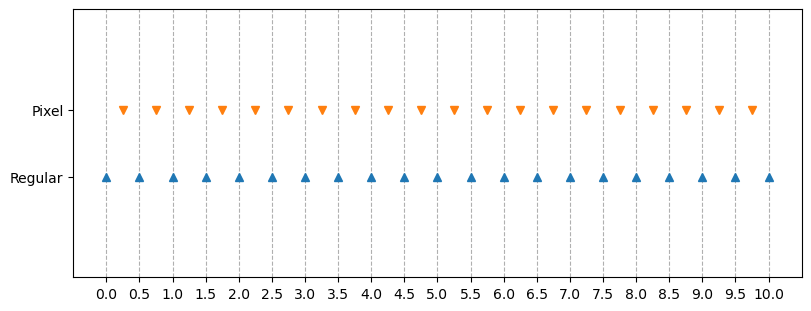
Notice that when using pixel-registration, there will be one less value because we’re calculating the number of intervals instead of the number of borders:
print(values.size, values_pixel.size)
21 20
Putting both arrays in a plot looks like this:
fig, ax = plt.subplots(1, 1, figsize=(8, 3), layout="constrained")
ax.plot(values, np.full_like(values, -1), "^")
ax.plot(values_pixel, np.full_like(values_pixel, 1), "v")
ax.set_ylim(-4, 4)
ax.set_yticks([-1, 1])
ax.set_yticklabels(["Regular", "Pixel"])
ax.set_xticks(np.arange(0, 10.01, 0.5))
ax.grid(axis="x", linestyle="--")
plt.show()
The logic for adjusting the region or the spacing remains the same for pixel registration:
values_spacing = bd.line_coordinates(0, 10, spacing=0.6, pixel_register=True)
print(values_spacing)
print(values_spacing[1] - values_spacing[0])

values_region = bd.line_coordinates(
    0, 10, spacing=0.6, pixel_register=True, adjust="region",
)
print(values_region)
print(values_region[1] - values_region[0])
[0.29411765 0.88235294 1.47058824 2.05882353 2.64705882 3.23529412
 3.82352941 4.41176471 5.         5.58823529 6.17647059 6.76470588
 7.35294118 7.94117647 8.52941176 9.11764706 9.70588235]
0.588235294117647
[0.2 0.8 1.4 2.  2.6 3.2 3.8 4.4 5.  5.6 6.2 6.8 7.4 8.  8.6 9.2 9.8]
0.5999999999999999
There is a slight rounding error but notice that the spacing is changed in the first line while the region is changed in the second.
1.5. What’s next#
Now that you know how to make evenly spaced values in one dimension, let’s see how to apply that logic to multiple dimensions in “Regular grids and meshes”.
Have questions?
Please ask on any of the Fatiando a Terra community channels!